
Privacy settings
Information
Section titled “Information”You may notice that some account services have ways to hide some of your personal information, such as your profile page and even your bio. For myTT, that’s exactly what we offer here! Our latest update for the 17th of March includes the use to set your privacy settings. Some of these settings you can change are as follows:
- Private your profile page from others
Hide your bio from others
When you set any of these, only you are allowed to see them, while others cannot see them, even if they are logged in or not. Let’s go over on these settings!
Hide your profile page
Section titled “Hide your profile page”By default, your profile page is not hidden from anyone. To hide your profile page, go to your account privacy settings. Find where the “Hide your profile” section is at. Click on the select dropdown. The list includes the following
- Enable
- Hides your profile
- Disable
- Un-hides your profile
Click on the enable option and submit your changes. When you go back to your profile page, it’s still visible, but only for you! When someone is logged in or not and wants to go to your profile page, they will get this error like this.
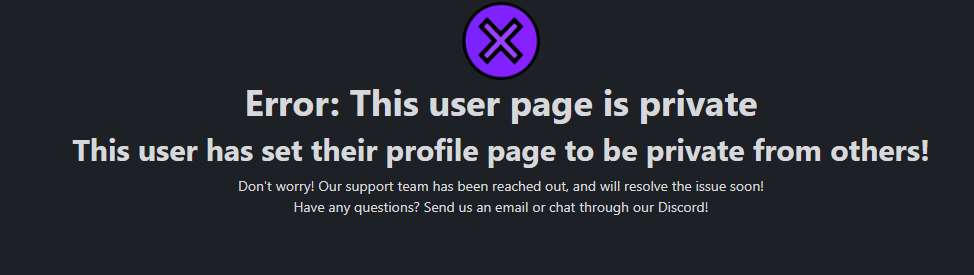
This error says that the user has set their privacy settings to hide their profile page from others. If you want to un-hide your profile, go back to your account privacy settings and find the “Hide your profile” section. Click the dropdown bar and click on the disable option. Submit your changes. This time, when someone goes to your profile page, it’s now visible to them.
Additionally, if you set this setting, the API route for grabbing a user’s data, it will also be private as well! A response will look like this.
{ "status": 500, "message": "This user page is set to private! You cannot look at their information right now!"}